A clip can look sharp on your phone and still feel cramped in the Shorts feed. The right YouTube Shorts format starts with a vertical frame, the right length, and text placed where the app won’t cover it.
We analyzed 37 comments from Reddit and YouTube about YouTube shorts format and found that 32% mentioned uncertainty about required aspect ratio.
Here are the key specs, plus ways to adapt podcasts, sermons, and other long videos without rebuilding them from scratch.
What the YouTube Shorts Format Means: Shape, Size, and Length
For a full-screen Short, use a portrait 9:16 frame. A common export size is 1080 × 1920 pixels. That gives you Full HD detail in a tall frame, with no need to crop a horizontal image after export.
YouTube also classifies square videos as Shorts. Google’s current rules include square or taller videos, so a square clip may qualify. But it won’t fill a phone screen like a 9:16 video. Side bars or extra space can make a square interview feel less immediate.
Length has changed from the old one-minute limit. You can upload Shorts up to three minutes long through the YouTube app or Studio; see this page. If you’re making a longer clip, check its music and copyright status before posting.
For export settings, MP4 is a widely used choice, with H.264 video encoding. MOV is another supported container in common creator workflows. Keep the frame rate consistent with your source footage, then watch the exported file once before upload. A good export should look crisp without making speech hard to hear.
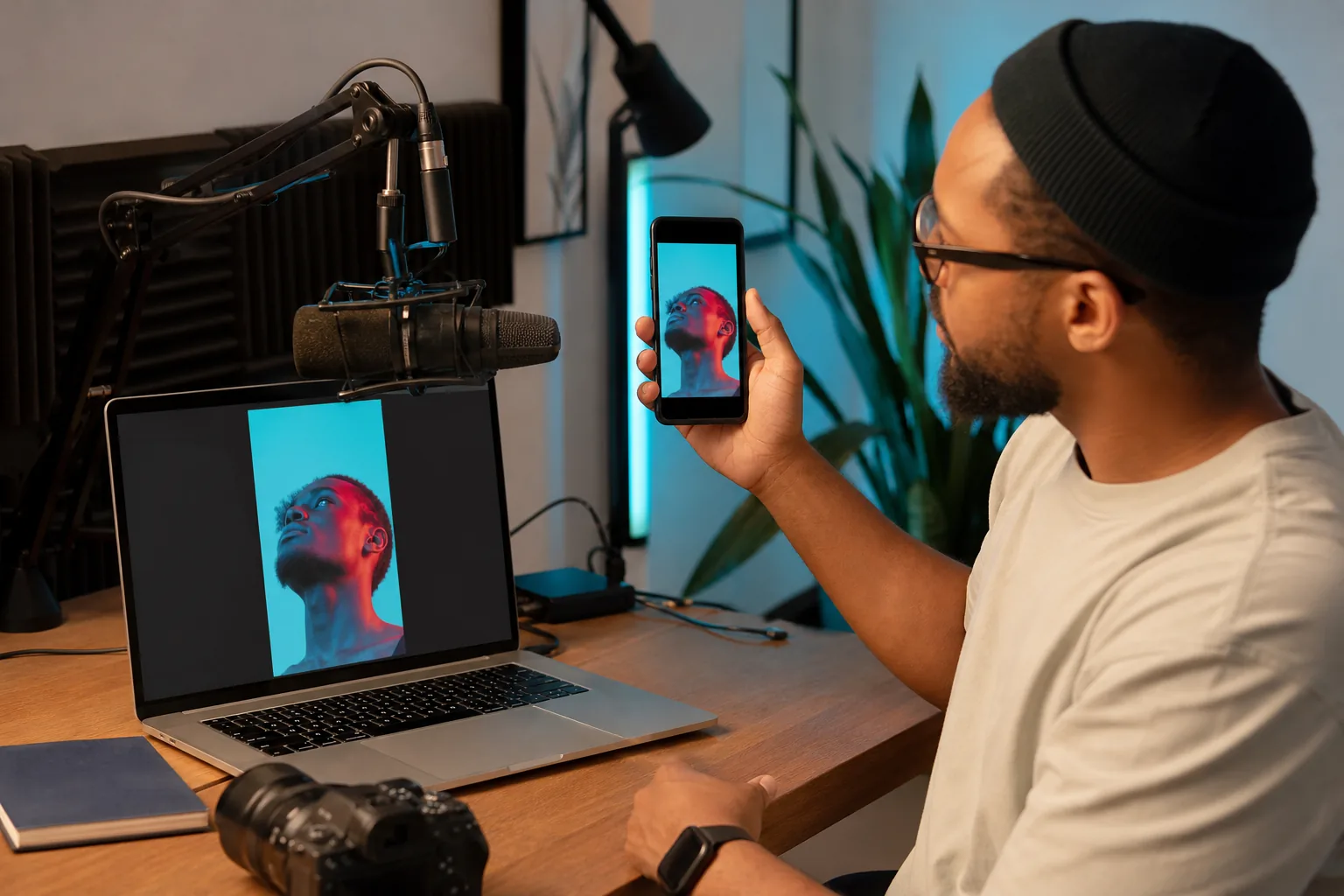
Quick spec check: Aim for 9:16 at 1080 × 1920 pixels. Keep a Short within three minutes, and export a clean, compatible video file.
How Shorts Display: Safe Areas, Thumbnails, Captions, and Sound
A vertical file can meet the size spec and still hide the point of the clip. Shorts controls sit over parts of the screen. Keep faces, key words, and captions away from the right edge and the bottom area where buttons or descriptions may appear.
There’s no single safe-area grid that stays fixed across every phone and app view. Preview the clip on a phone before publishing. If a caption touches the screen edge, move it inward. If a name or quote lands beneath an icon, shift it up or toward the center.
Captions matter most when people watch without sound, or when a room is noisy. Use short lines with strong contrast. Don’t let a caption cover a speaker’s mouth, and check names or technical terms by hand. Auto-captions can save time, but a wrong word in a sermon or interview can change the meaning.
Sound should feel clear before you add music. Listen on headphones, then play the clip through a phone speaker. Speech that sounds clean in headphones can get lost on a small device. Keep background music low enough that every spoken word remains easy to follow. For editing guidance, see the help page.
Shorts thumbnails need a separate check. The viewer may first meet a clip in the Shorts feed, but the cover can also show on your channel page. Choose a frame where the speaker’s face is clear. Keep any cover text brief, and review how it looks beside your other videos.
If you also publish the same vertical clip as a Reel, the screen shape is similar, but each app’s buttons can sit in different places. PenguinClip’s Instagram Reels size and cropping guide can help you check framing before you reuse a clip across platforms.
Adapting Podcasts, Sermons, and Horizontal Videos to Vertical Shorts
Start with the moment, not the crop. A useful clip has one clear thought: a guest’s sharp answer, a sermon point with a strong opening, or a webinar tip that makes sense on its own. If the clip needs five minutes of context, it may not work as a Short yet.
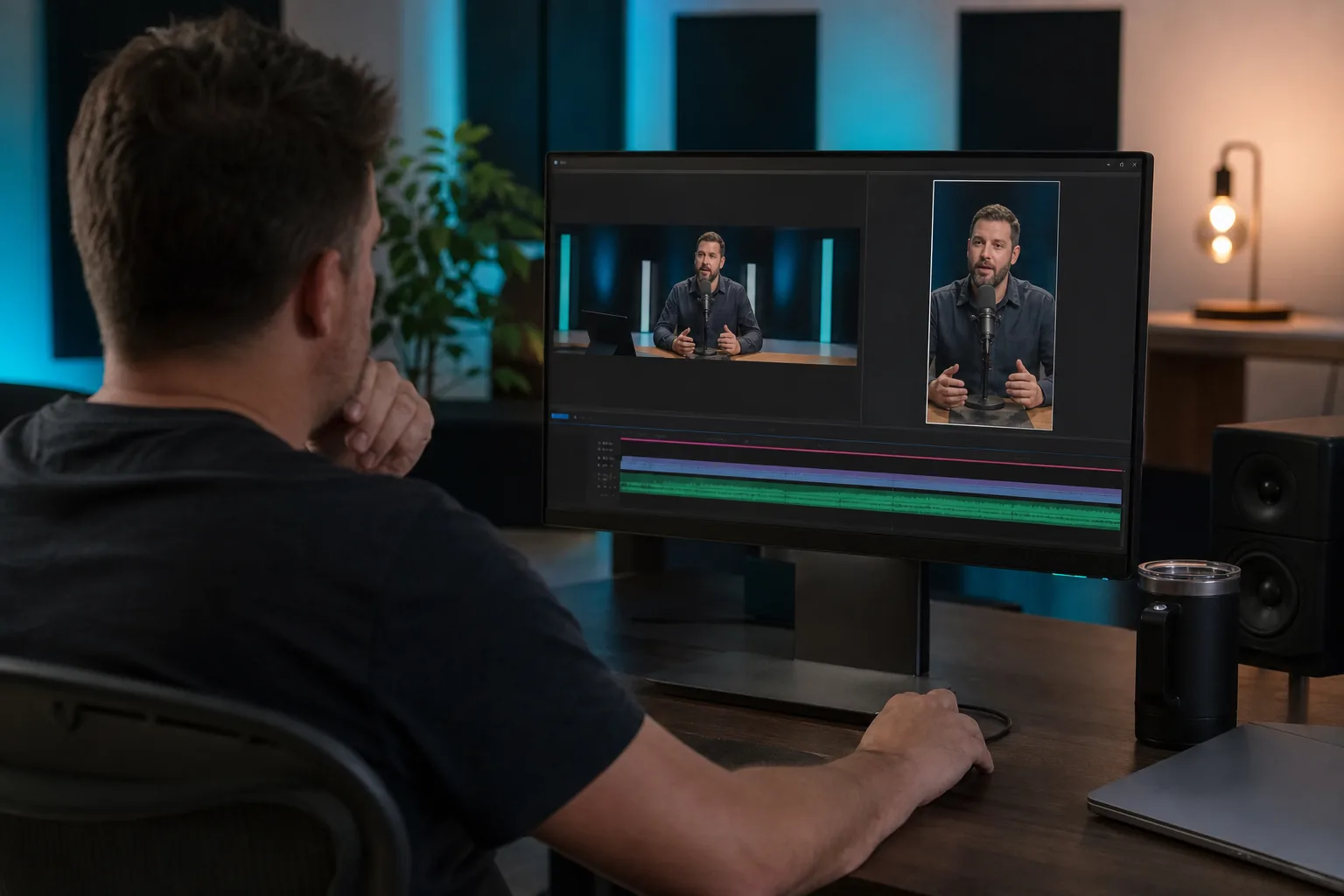
For a two-person interview, a horizontal frame often shows both speakers. When you crop it to portrait, one person may disappear. Use a speaker-focused crop if the active speaker is clear. If both people need to stay visible, try a stacked layout, with each face in its own area. Check that faces stay large enough to read on a phone.
Sermons and teaching videos need another kind of care. A crop should keep the speaker in frame without cutting off gestures or visual aids. If a key point refers to a slide, show the needed words in the vertical edit or choose another moment. A clip should carry its point without asking viewers to guess what they can’t see.
A simple workflow helps you catch problems before upload:
- Find a short passage with a clear opening and a complete idea.
- Set the project to a 9:16 canvas, then position the speaker or subject.
- Add captions and check every line against the audio.
- Export, watch the full file, then confirm the frame and sound on a phone.
For more detail on selecting and shaping a moment from an existing upload, use this workflow for making Shorts from YouTube videos. It covers the editing work that comes after you pick a clip.
If you publish a weekly show, the editing can become its own job. PenguinClip turns podcasts, webinars, courses, and YouTube videos into captioned vertical clips, with weekly delivery to cloud storage. Our team handles the clipping and formatting, so you can focus on recording and publishing.
How Shorts Reach Viewers: Discovery, Trends, and Monetization
There isn’t one magic setting that makes a Short spread. For more on Shorts, see YouTube Help.
That makes the opening seconds worth reviewing. Start near the question, claim, or story turn. Remove a long greeting if the useful point comes later. Then check audience retention in your channel’s performance data. If viewers leave before the answer, try a tighter opening on the next clip.
Topics and timing also matter. YouTube notes that interest in a topic, competition, and seasonality can affect the audience a Short reaches. A trend may fit your content, but copying a sound won’t fix a clip that has no clear idea. Use a trend only when it supports what you’re saying.
Hashtags can help label a topic, but they can’t promise views. Choose a few that accurately describe the clip. Keep the title readable and specific, especially when someone may find the video through search or your channel page.
Shorts can earn revenue for eligible YouTube monetizing partners. YouTube explains that ads shown between videos in the Shorts feed contribute to a revenue-sharing model. Creators need to meet the program rules and accept the Shorts Monetization Module. A clip’s format alone doesn’t make a channel eligible.
Use analytics to make the next decision, not just to judge a single post. Look at average view duration and average percentage viewed alongside views. If a clip holds attention but draws few views, test a clearer title or a different topic. If people leave early, revise the opening or shorten the setup.
Audio, Accessibility, and Policy Pitfalls to Check Before Publishing
Music rights deserve a careful check, especially on clips longer than one minute. Available music tracks may have different time limits. For a three-minute Short, some songs may cover up to 90 seconds, while other tracks are limited to 60 or 30 seconds. Check the track’s permitted length in YouTube’s tools before you build the edit around it.
For speech-led content, original voice audio is often the core of the clip. If you add a music bed, keep it low and make sure you have the right to use it. A clip can be technically correct and still face a copyright claim. Review the linked material before publishing.
Captions are an access feature, not decoration. Make sure they match what the speaker said. Use enough screen time for a viewer to read each line, and don’t rely on color alone to separate text from the picture. A quick watch with the sound off can reveal missing words or captions that move too fast.
Short clips still follow YouTube’s rules. A short edit doesn’t make medical claims, harassment, or reused material exempt from policy. For preaching, coaching, and health-related education, keep enough context around claims that could be misunderstood. Review the full clip, its title, and its description before posting.
Before publishing, check the file from start to finish. Confirm the frame is vertical, the captions are in safe areas, and the speech is clear. Then check the title and rights status in Studio. This small review can catch an export problem before it becomes a public one.
Frequently Asked Questions
What size should a YouTube Short be?
A YouTube Short should ideally use a 9:16 portrait frame at 1080 × 1920 pixels. Square video is also permitted, but it may display black bars. Use a vertical export when you want a full-screen mobile view, then preview it on a phone.
How long can a YouTube Short be?
A YouTube Short can be up to three minutes long. You can upload Shorts through the YouTube app or YouTube Studio. For clips longer than one minute, pay special attention to music rights and claims, since those can affect availability. The three-minute limit is separate from YouTube’s general file-size upload limit.
What file format should I use for YouTube Shorts?
MP4 with H.264 video is a dependable export choice for Shorts. MOV is also used for video delivery, but check your export settings and confirm the finished file plays before uploading. Use 1080 × 1920 pixels for a full HD portrait frame, and keep the speech clear after compression.
Do I need to add #Shorts to my title?
No, you don’t need to rely on #Shorts to make a video count as a Short. YouTube classifies eligible videos based on its format and duration rules. A relevant hashtag may help describe the topic, but it won’t make an unclear clip more engaging or guarantee that it reaches more viewers.
Can I turn a horizontal podcast into a Short?
Yes. Choose a complete, focused moment, then crop or arrange the footage in a 9:16 frame. For a two-person interview, check that both speakers remain visible or use a layout that gives each person space. Add captions, listen for clear speech, and preview the final clip on a phone before posting.
Conclusion
Use a 9:16, 1080 × 1920 export and keep the clip within three minutes, then check captions, sound, and framing on a phone. If you’re turning weekly long-form recordings into clips, see how to repurpose long-form video for social media and choose a workflow that leaves you time to make the next episode.