
Editing a Reel can take longer than filming it. The right Instagram Reels editor depends on whether you want hands-on control or a quicker way to turn long-form content into clips.
Here are five apps for different editing needs, plus a done-for-you option from PenguinClip for creators who’d rather not edit every week.
1. CapCut: Best for flexible, free mobile editing
CapCut is a video editor that works across mobile, browser, Mac, and Windows. It has a free plan and suits creators who want to edit Reels on different devices without paying for basic tools.
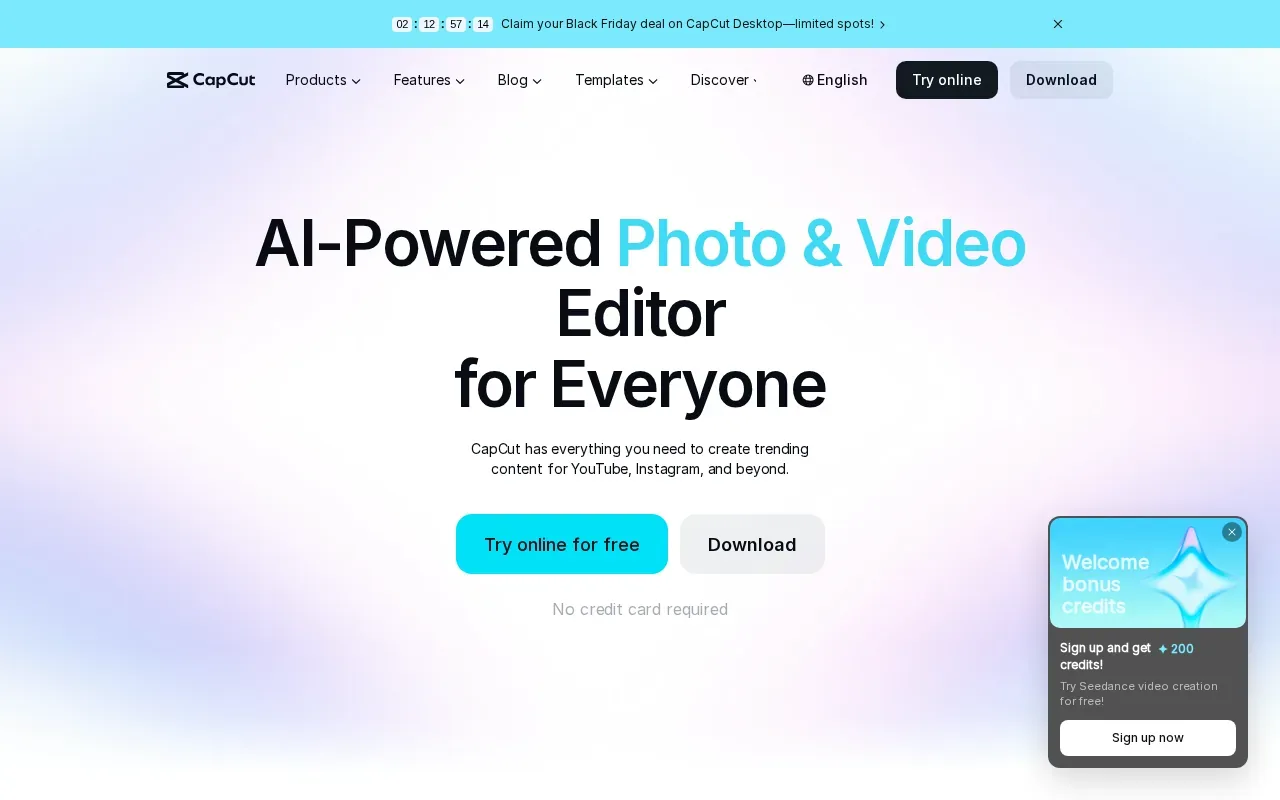
For a quick interview clip, you can set a vertical 9:16 canvas, trim the footage, then add text or music. CapCut also has multiple tracks, stickers, transitions, and effects, so you can shape the clip without leaving the editor. For more information, see CapCut’s video editor.
That range is useful if you switch between a phone edit and a desktop session. You can also adjust export settings such as resolution and frame rate. For a full-screen Reel, a 1080 by 1920 export at 9:16 is a common target.
Best fit: Creators who want free editing tools and the option to work across devices. If you’re making clips from a podcast each week, remember that you’ll still need to find the moments and review the finished edits yourself.
2. InShot: Best for quick edits on iPhone and Android
InShot is a mobile video editor available on both the Apple App Store and Google Play. It has a free plan, though you’ll need to upgrade to remove the watermark.
Its core tools cover common short-form edits: trim a clip, split a scene, or merge several shots. You can add text, filters, captions, and stickers, then adjust the video to fit a vertical frame. That makes InShot a handy pick when a speaker’s answer needs a quick cut and a clear title before posting.
It can suit a creator who works mainly from a phone and wants a direct editing flow. For spoken content, captions need a careful review before you publish. Names, acronyms, and specialist terms are easy to misread in automated text. Our Instagram Reels caption guide explains ways to check and style them.
Keep in mind: the free version includes a watermark unless you upgrade. If you’re editing one or two clips now and then, the app’s trim, split, and text tools cover the basic job.
3. Canva: Best for branded Reels made on the go
Canva is a graphic design tool with a video editor. It has a free plan, while paid plans start at $12.99 per month. It’s a good fit for creators who want to make a Reel while keeping titles and other visual elements consistent with their brand.
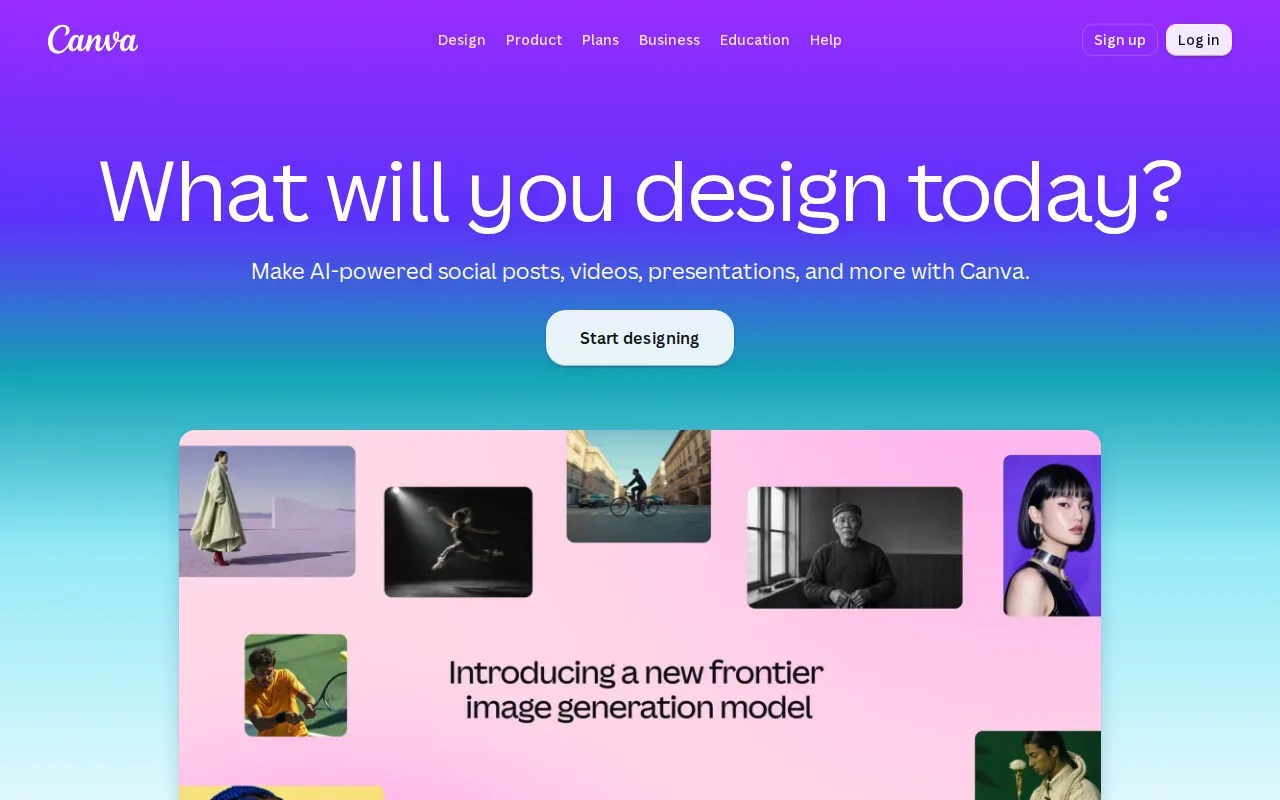
The easy-to-use interface helps beginners put together a polished video without learning a complex editing workflow. That can work well for a course creator making a short lesson teaser, or a coach adding a clear title to a talking-head clip. The app’s focus on design makes it useful when the visual layout matters as much as the cut.
Still, a branded template doesn’t choose the best moment from a long recording. If you’re starting with a full webinar or podcast, you’ll need to identify a strong section first, then edit it into a short clip.
Best fit: Creators who want a simple way to make on-the-go videos with a consistent visual style. Keep titles short and place them where Instagram’s controls won’t cover them.
4. KineMaster: Best for hands-on mobile timeline editing
KineMaster is a mobile video editor with a full-screen timeline and multi-layer editing. It has a free version, with in-app purchases required to remove the watermark.
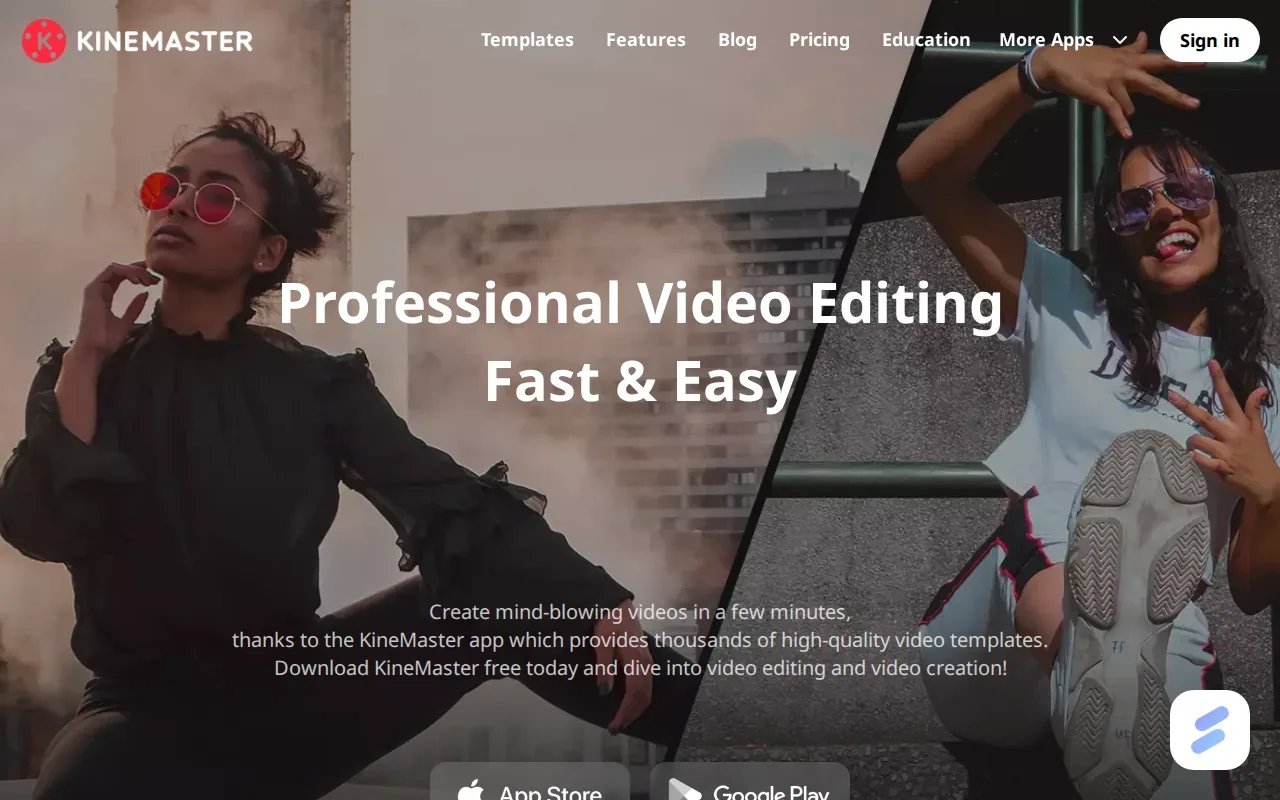
Multiple layers give you room to combine video with text or images on the timeline. You can trim, crop, and fine-tune footage, which helps when you need to adjust a speaker’s framing or place a title over a specific moment. KineMaster also has video templates for social platforms, including Instagram.
This setup can suit creators who like to shape a clip directly on their phone and want more timeline control than a basic trim. For instance, you might place a title over the opening line, then keep it off screen during the rest of the answer. A multi-layer timeline takes some hands-on work, so it’s a stronger match for people who want to edit rather than hand the task off.
Consider the watermark: removing it requires an in-app purchase. If you’re testing the free version, check the exported file before you settle on it for regular posting.
5. Adobe Premiere: Best for creators already using Creative Cloud
Adobe Premiere on iPhone is free and fits creators who already use an Adobe Creative Cloud subscription. Creative Cloud integration is the key reason to consider it if it already belongs in your work setup.
For a creator who edits video on an iPhone and uses Creative Cloud, staying within a familiar set of tools may fit the existing workflow. It’s worth checking which device you’ll use most and how the app fits the way you already handle footage before making it your regular Reel editor.
The research details for this option center on iPhone access and Creative Cloud integration. They don’t establish specific editing tools, export settings, or desktop features for this roundup, so compare it on the facts that matter to your own setup rather than assuming it matches another Premiere product.
Best fit: Creators already tied into Creative Cloud who want to edit Reels on an iPhone. If your main need is clipping long interviews each week, consider whether you want to do that editing yourself or hand it off.
Instagram Reels editor apps compared: features and workflow fit
Pick an app by the work you need it to do. Free access can keep costs down, while a watermark or hands-on timeline may shape your workflow. For a full-screen Reel, check that the frame fits 9:16; the Instagram Reel dimensions guide covers sizing and export details.
| Option | Workflow fit | Useful features | Price details |
|---|---|---|---|
| CapCut | Editing across devices | Multiple tracks, effects, AI subtitles | Free plan available |
| InShot | Quick phone edits | Trim, split, merge, text, captions | Free plan; upgrade to remove watermark |
| Canva | Branded videos on the go | Graphic design tools and video editor | Free; paid plans start at $12.99 per month |
| KineMaster | Hands-on mobile timeline work | Multi-layer editing, trim, crop | Free version; in-app purchase for watermark removal |
| Adobe Premiere | iPhone editing for Creative Cloud users | Creative Cloud integration | Free on iPhone |
A basic in-app workflow starts with choosing or recording footage. Trim the opening and ending, add text or a sticker, then check captions and placement. Instagram’s own app is available at Instagram, where you can create and share Reels.
Before posting, watch the exported clip on a phone. Make sure the speaker stays in frame and the text isn’t hidden by app controls. Many editors let you export a vertical file, but the best settings depend on the app and source footage. Don’t assume a higher resolution will fix a soft or poorly framed source video.
Batching can help if you edit several clips from one interview. Set a repeatable layout, review each caption, then export the clips together. But every app-based workflow still leaves you with the selection and review work. PenguinClip takes that weekly clipping task off your plate: our team selects moments, edits and captions vertical clips, then delivers ready-to-post files to your cloud storage.
Frequently asked questions
What is the best Instagram Reels editor for beginners?
InShot or Canva can be good starting points if you want a straightforward mobile workflow. InShot has trim, split, text, filters, captions, and stickers. Canva combines a video editor with graphic design tools. Try a short clip first, then see which app feels easier for your usual edits.
Can I edit Instagram Reels for free?
Yes, several apps in this list have free plans or versions. CapCut, InShot, and Canva each have a free option, while Adobe Premiere on iPhone is free. Check the watermark terms before you build a regular workflow around a free version, since InShot and KineMaster require payment to remove theirs.
What size should I export an Instagram Reel?
A common full-screen export is 1080 by 1920 pixels with a 9:16 aspect ratio. Keep key text and faces away from the screen edges, then preview the file on a phone. Export choices can vary by app, so check the final video before posting instead of relying only on a preset.
Which editor is best for captions on Reels?
InShot includes captions among its editing features. Instagram also has a closed-caption sticker for spoken video. Whichever method you use, review the text for names and terms the software may mishear before sharing the Reel.
Is an editing app better than a clipping service?
An editing app is a better fit when you want to select moments and make each edit yourself. A clipping service is useful when you have long-form recordings and want someone else to handle the weekly work. PenguinClip selects highlights, edits and scores clips, then delivers them to your chosen cloud storage.
Conclusion
Choose CapCut for flexible editing across devices, or InShot for quick phone edits. If you’re a busy podcaster, coach, or course creator who wants weekly clips without doing the editing, see PenguinClip’s plans and choose a delivery pace that fits your publishing schedule.