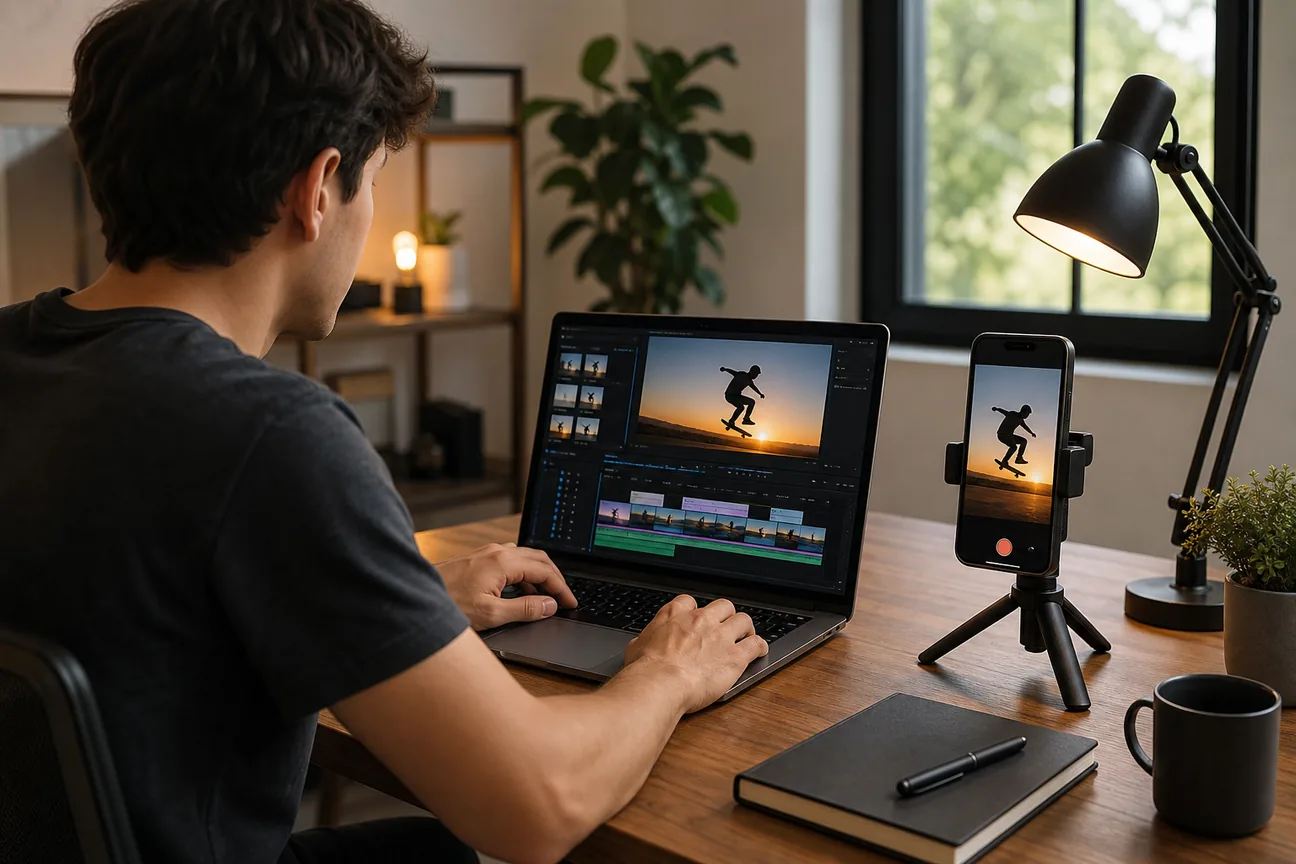
A strong Short can come from a podcast answer, a sermon, or one clear moment in a webinar. The hard part is choosing how much editing you want to handle yourself. Here are nine YouTube Shorts editors and services, with a focus on who each suits and how it fits a weekly workflow.
1. PenguinClip
PenguinClip is a done-for-you video repurposing service for creators who want polished vertical clips without editing each one. It’s best for podcasters, coaches, course creators, webinar teams, and YouTubers who publish long-form videos on a regular schedule.
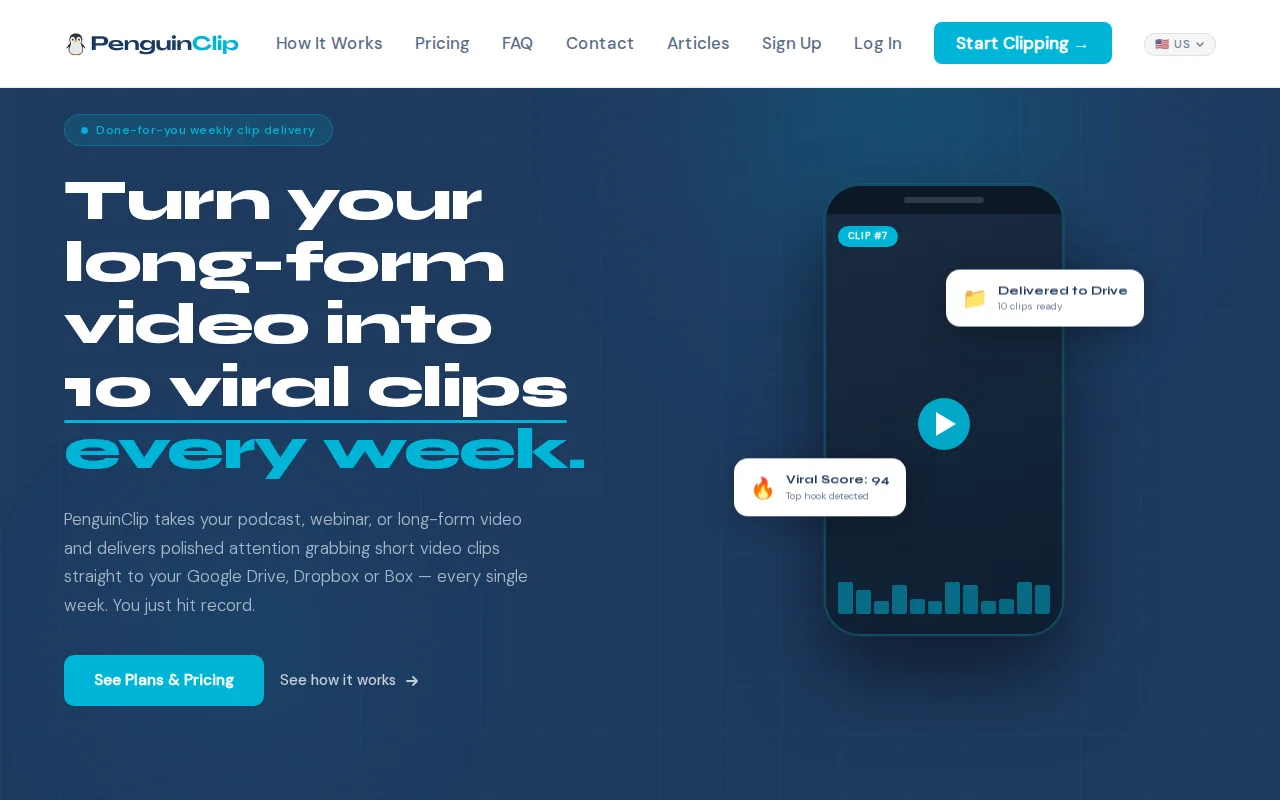
You send a podcast, webinar, course, sermon, or YouTube video. Our team selects highlights, edits and captions the clips, then scores them so you can see what to post first. Finished files arrive in your cloud storage each week, labelled and ready to post. You keep making the content. We handle the clipping.
This workflow suits a busy host who would rather review a batch of clips than hunt through a full recording. Plans recur, but you can cancel anytime. If you’re weighing the workload against the cost, check our PenguinClip pricing details.
The trade-off is less hands-on control than editing each Short yourself. If you want to pick every cut and adjust every frame, a DIY editor gives you more direct control.
2. AI Clips by StreamYard: Repurpose recordings from a StreamYard workflow
AI Clips by StreamYard is StreamYard’s built-in AI video repurposing tool. It’s a fit for podcasters and interview hosts who already record or stream in StreamYard and want a self-service way to find short moments.
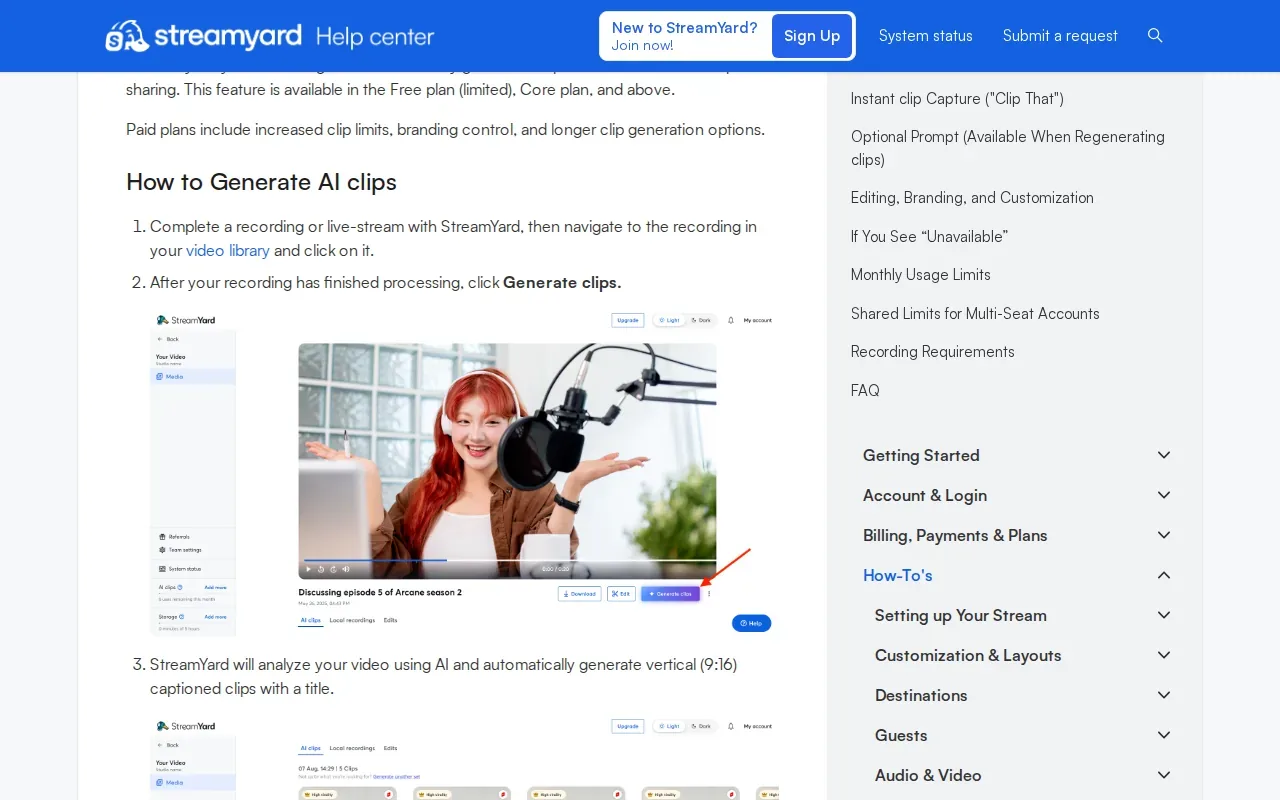
The tool analyzes a recording and generates vertical clips with captions. That can cut down on timeline searching when an interview has several strong answers. StreamYard describes its clips as a way to move from a full recording to candidate highlights inside the same workflow.
The main benefit is that your source video already lives in the recording workflow. You don’t need to start by moving footage into a separate editor. Still, AI-selected moments need a human check: a clip can start too early, miss context, or end before the thought lands.
It’s a self-service tool, not a weekly editing team. If you need someone else to choose and finish each batch, a done-for-you service may fit better.
3. VEED: A browser-based editor for a multi-platform workflow
VEED is a browser-based video editor that can sit alongside a StreamYard workflow. It may suit creators who want to add editing layers after recording, especially when a clip needs more work before it goes to several social channels.
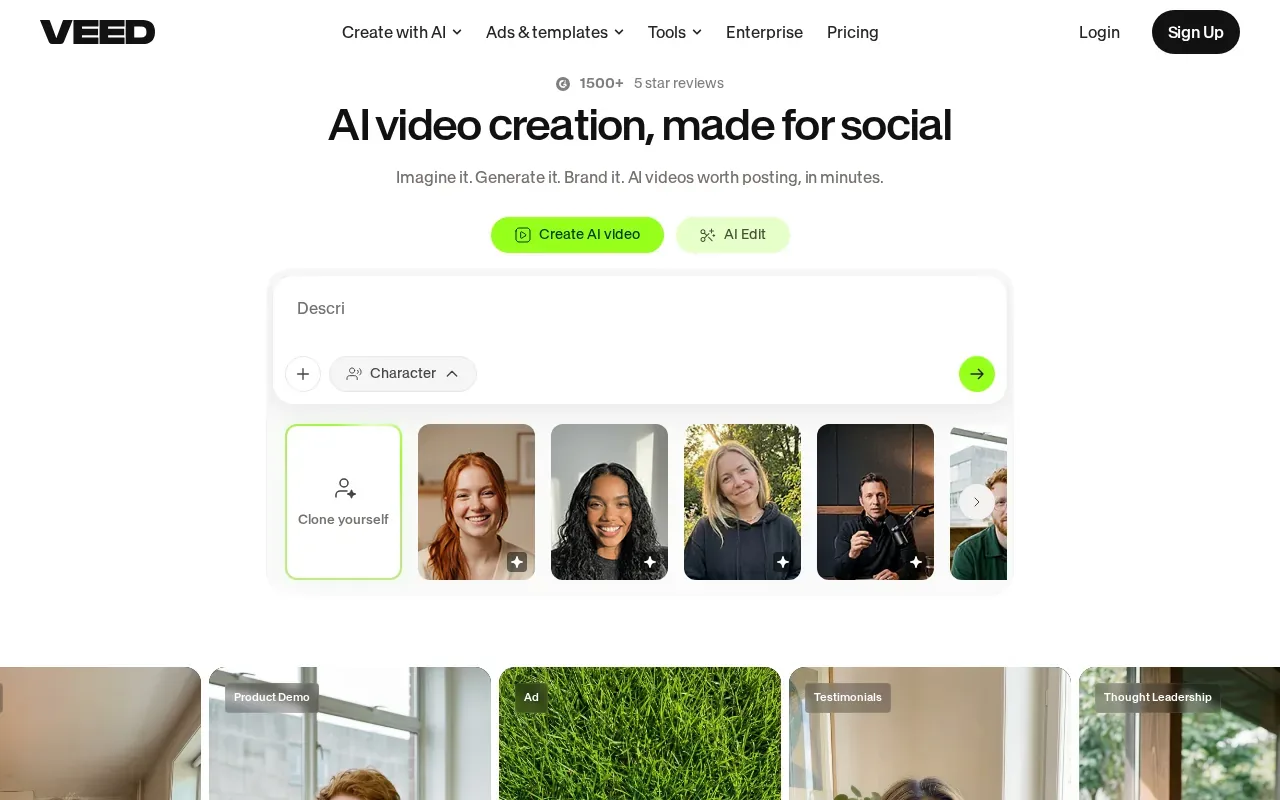
For a talking-head clip, the useful distinction is between finding the moment and shaping the final edit. A browser editor gives you a place to work on the video after the recording is done. That can help when a simple cut needs more visual treatment or adjustments for different platforms.
VEED is an optional extra, not a requirement for every creator.
If your clips need only a clean cut and captions, adding another editing step may slow the handoff rather than help it.
4. Hype Clippers: Done-for-you clipping and distribution
Hype Clippers is a done-for-you service that turns long-form content into short clips and runs multi-platform distribution. It’s suited to creators or teams that want clipping and publishing support in one service relationship.
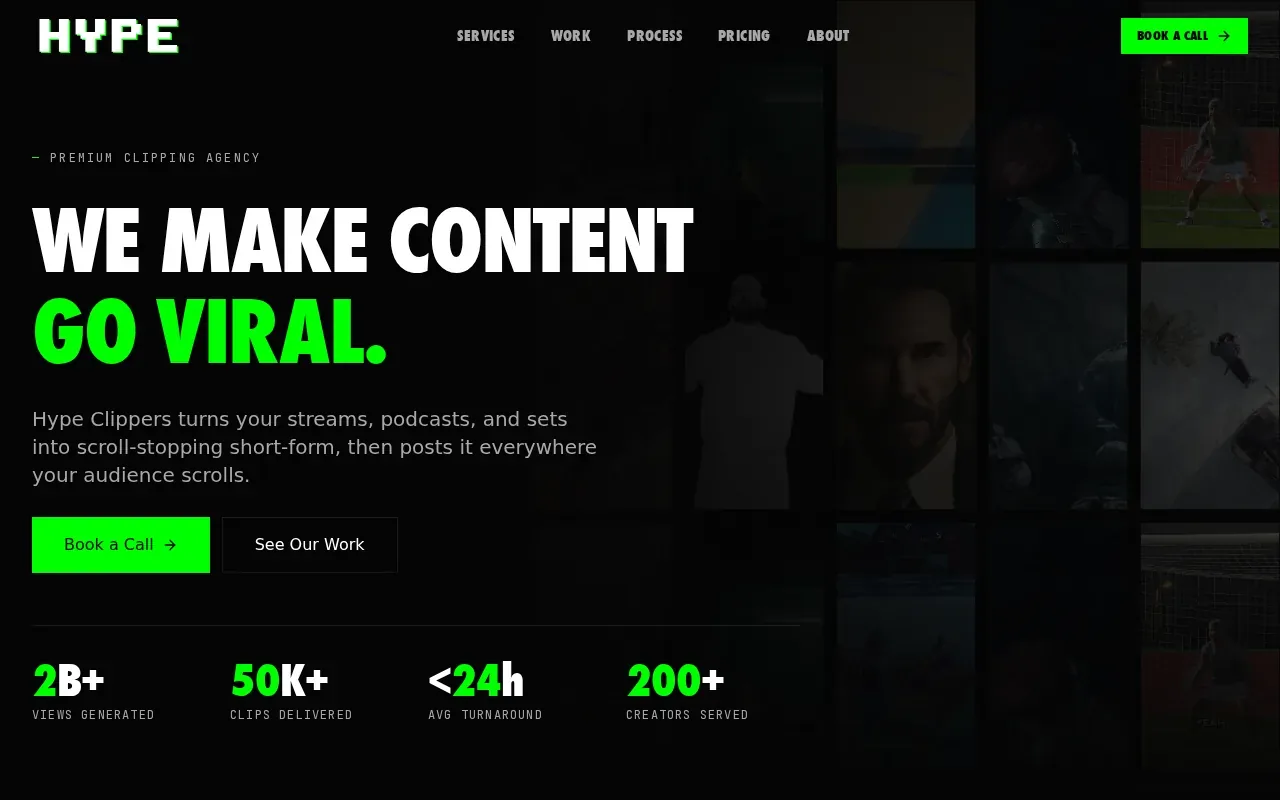
That scope may appeal to an agency managing several channels, or a podcast team that wants clips to move beyond YouTube Shorts. The service is described as handling distribution across multiple platforms, so it covers more than preparing files for a creator to post themselves.
The information available here doesn’t specify its editing process, weekly delivery schedule, pricing, or approval steps. Ask about those details before relying on it for a fixed publishing calendar. Predictable delivery matters when a team plans clips around a weekly show.
If you only need finished files delivered to your storage, check that the distribution side doesn’t add steps you won’t use.
5. YouTube Create: Mobile editing from YouTube
YouTube Create is YouTube’s mobile editing option. It’s worth considering if you prefer to work on your phone and want to prepare a Short close to where you publish it.
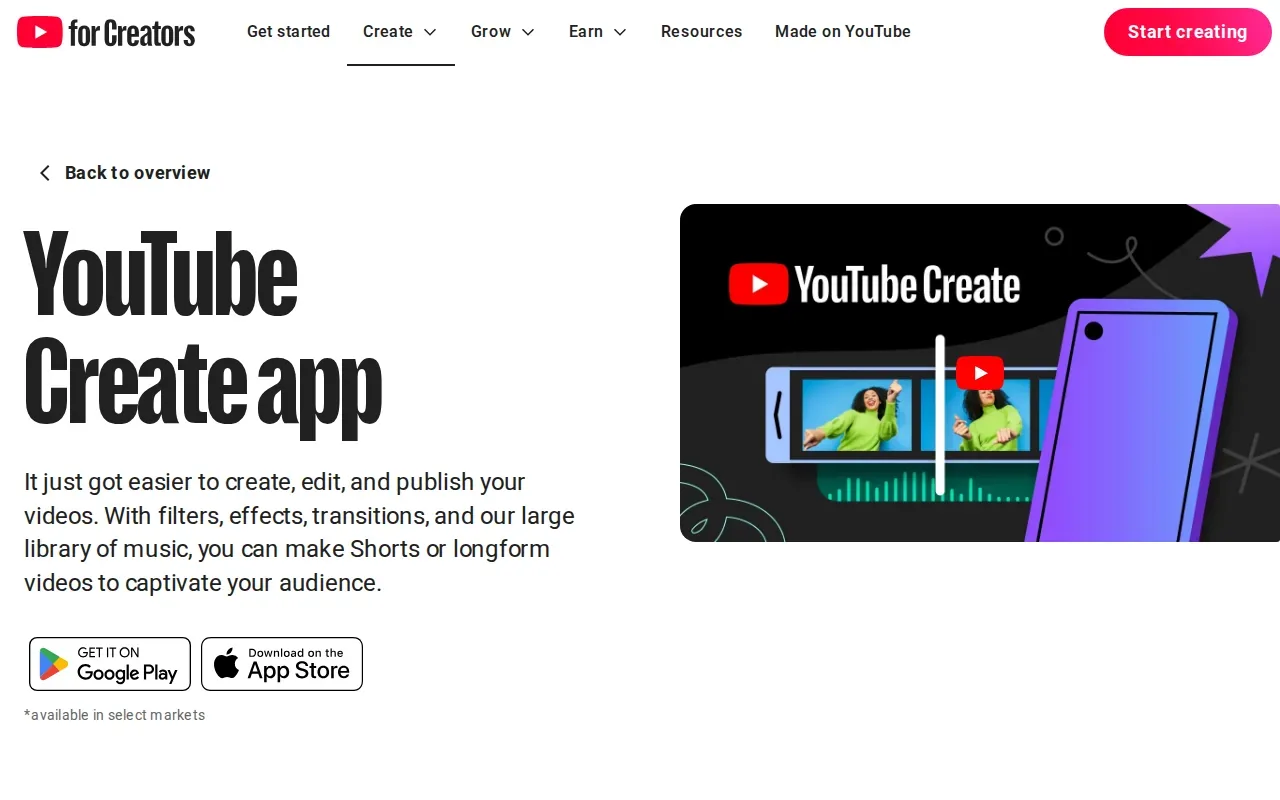
Mobile editing can suit a creator who records a quick update between other tasks. For an interview show, though, choosing a strong 20-second answer from a long recording takes more than a phone editor alone. You still need to find the moment, trim it with context, and check the result before posting.
The source material here doesn’t establish the app’s full feature set or device availability. Confirm that it works on your phone and supports the edits you need before making it your regular workflow.
It’s a hands-on choice. You stay in charge of each cut, and you also spend the time to make them.
6. Microsoft Clipchamp: A straightforward editor for uploaded footage
Microsoft Clipchamp is a video editor designed for people who want to edit footage without prior editing experience. It can suit a creator who has already recorded a clip and wants to work through the edit themselves.
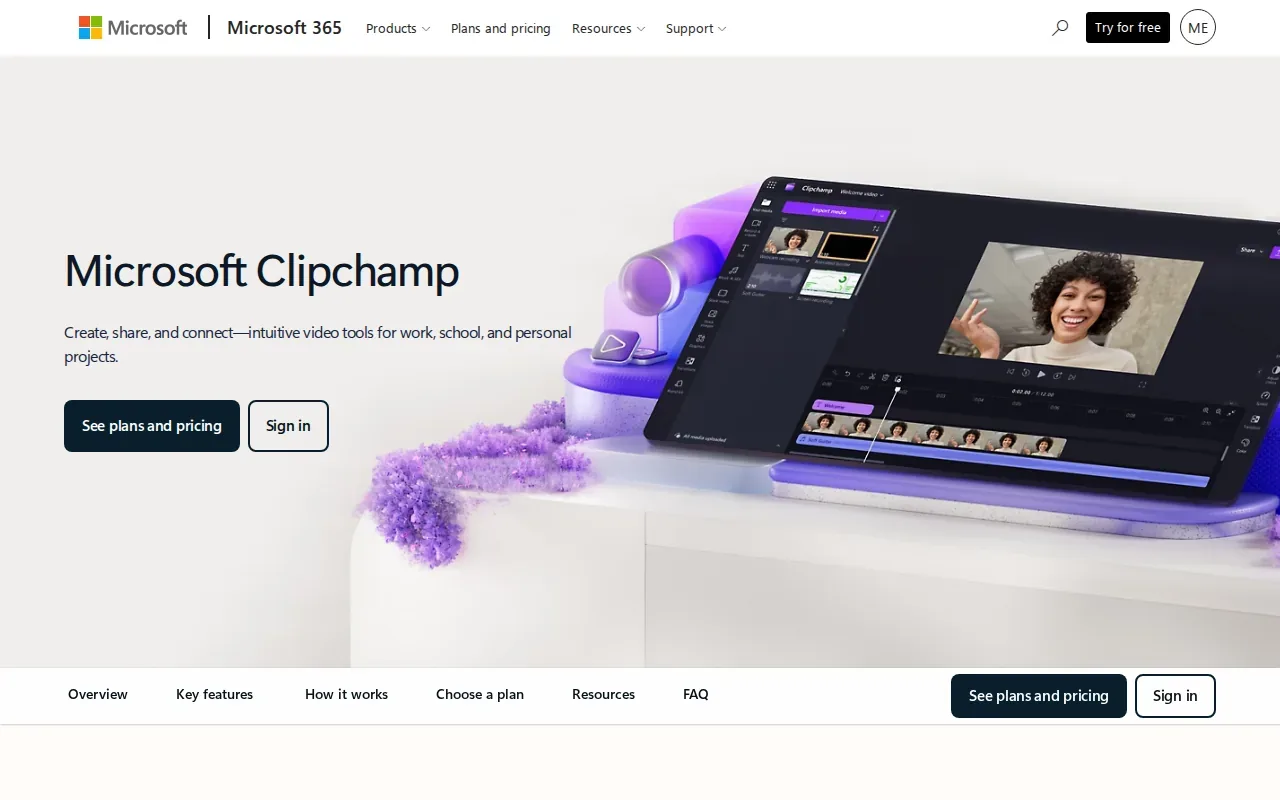
As a video editor, it can be one option for working on a clip from uploaded footage yourself rather than outsourcing the cut.
For an interview clip, you’ll still need to choose the answer and judge where it begins and ends. Captions also need review, especially for names, technical terms, or a speaker’s phrasing.
Clipchamp keeps you in the editor’s seat. That’s useful if you want direct control, but it won’t remove the weekly editing task.
7. CapCut: A mobile-first choice for captions and templates
CapCut is one of the options covered here.
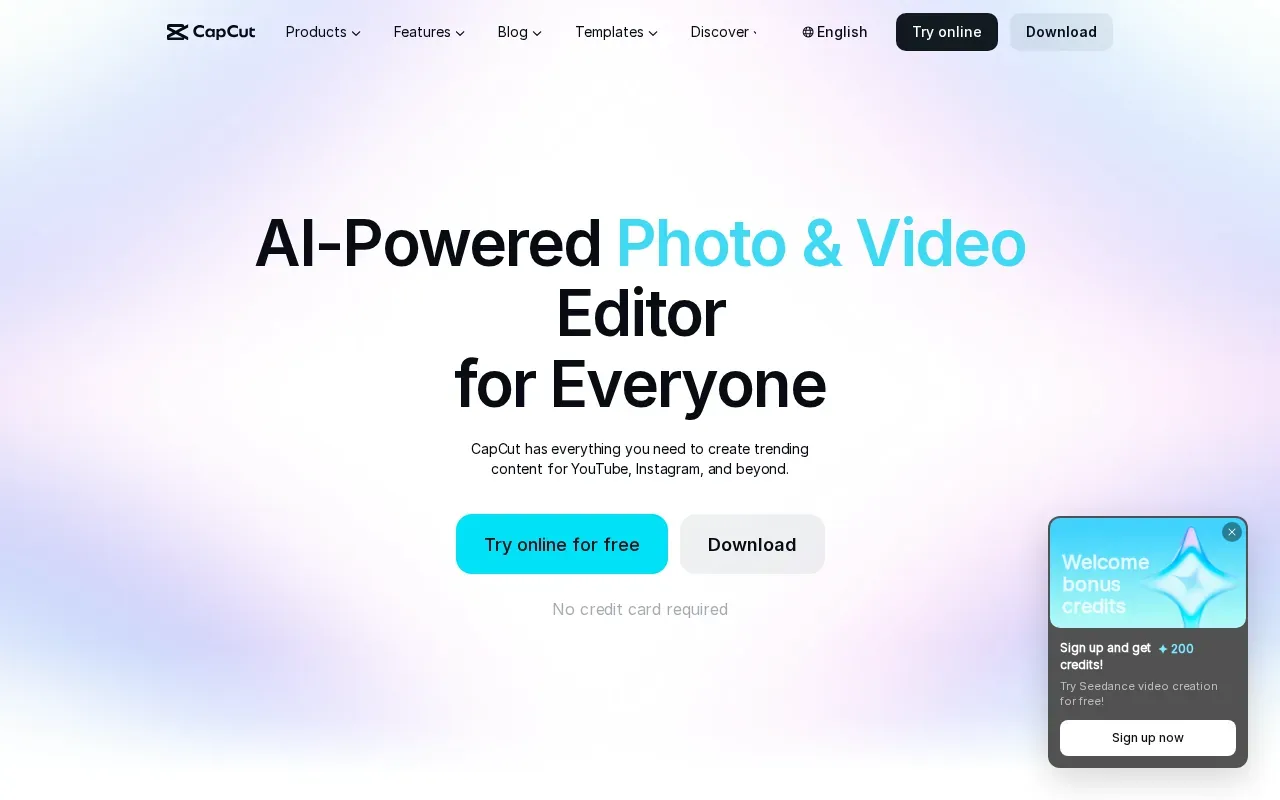
For a podcast or sermon, the long-video workflow can help surface candidate clips from an existing recording. You can then review the suggested moments and refine the cut. That review matters: a vivid sentence may not make sense without the question or short lead-in that came before it.
CapCut gives DIY editors room to shape a clip after the first draft. But its range of editing choices can take time to learn, and the source material doesn’t establish which features are available in every plan or region.
Choose it if you want to stay hands-on. Choose a service if editing is the task you’re trying to hand off.
8. Canva: Template-led Shorts editing for branded content
Canva suits creators who want template-led video work with a consistent visual style. It can fit a coach or course creator making branded promos, announcements, or short explainers from prepared footage and design assets.
A template can give a team a repeatable starting point. For example, a course team might use the same visual layout for several lesson teasers, then update the message and footage for each one. That approach puts more weight on clear text and brand style than on detailed interview cutting.
Canva is less suited to frame-by-frame work on a long, unscripted conversation.
If your main job is finding the best moments in a full podcast, a template won’t do that decision-making for you.
9. Kapwing: Online editing and prompt-assisted video projects
Kapwing is an online editor with prompt-assisted video projects and a workflow for turning long videos into shorter clips. It may suit content teams that want to start with a prompt or repurpose an existing recording in a browser.
For an interview or webinar, Kapwing’s described repurposing workflow analyzes a source video, pulls out highlight candidates, and makes clips that can be edited before posting. The prompt-led path is a different starting point: it can draft a project from a written idea, then let you continue editing.
That flexibility may help a team working with both original ideas and existing footage. It doesn’t remove the need to check context, caption accuracy, or the vertical crop before export.
Kapwing is a self-service editor. Plan for someone on your team to review and finish the clips.
YouTube Shorts editor comparison: which option fits your workflow?
The best fit depends on where the work starts. If you have a long interview and little time to edit, prioritize highlight selection and dependable delivery. If you already enjoy editing, a mobile or browser editor gives you more direct control.
| Option | Best fit | How the work gets done | Check before choosing |
|---|---|---|---|
| PenguinClip | Weekly clips without DIY editing | Team selects, edits, captions, scores, and delivers | Recurring plan details |
| AI Clips by StreamYard | StreamYard recording workflow | Self-service AI clip generation | Review each selected clip |
| VEED | Browser editing after recording | Optional editing layer | Pricing and caption details |
| Hype Clippers | Clipping plus distribution | Done-for-you service | Delivery schedule and approval flow |
| YouTube Create | Phone-based editing | Creator edits each Short | Device support and tools |
| Microsoft Clipchamp | Editing uploaded footage | Self-service editor | Plan limits for needed features |
| CapCut | DIY vertical edits and captions | Self-service editing | Feature availability for your setup |
| Canva | Branded, template-led clips | Creator adapts footage to a design | Fit for speech-led footage |
| Kapwing | Browser projects or repurposing | Prompt or source video, then manual review | Review and finish time |
For YouTube Shorts, frame the video vertically in 9:16. YouTube can classify eligible vertical videos as Shorts, and current guidance allows Shorts up to three minutes. Older tutorials may say 60 seconds, so check current upload rules if your clip runs longer.
A simple publishing routine is to set up a vertical project, record or upload footage, trim to one clear idea, then review captions and sound. Before posting, write a direct title, add a useful description, and choose a frame for the thumbnail where YouTube’s upload flow allows it. A #Shorts tag isn’t a substitute for a clear title.
After publishing, check Shorts analytics for views, retention, subscribers gained, and traffic sources. Those signals can show whether viewers leave at the opening or stay through the point. Monetization has eligibility rules; the full Shorts ad-revenue path has been described as requiring 1,000 subscribers and 10 million eligible Shorts views within 90 days.
For creators who want to stop editing every week, PenguinClip keeps the task with our team and sends finished clips to your cloud storage. A weekly workflow for turning long-form content into social videos can also help you plan how each recording becomes a batch of posts.
Learn more about PenguinClip. Our team handles the editing; you keep creating.
Frequently Asked Questions
What is the best YouTube Shorts editor for podcasts?
For podcasters who want weekly clips without editing them, PenguinClip is a strong fit in this shortlist. Our team picks highlights from long-form recordings, edits and captions vertical clips, then delivers the files each week. If you’d rather make every cut yourself, consider a self-service editor and plan time to review each clip.
How long can a YouTube Short be?
A YouTube Short can be up to three minutes under current guidance, and vertical 9:16 is the standard format for filling a phone screen. Some older tutorials still describe a 60-second limit. If you’re making longer clips, check YouTube’s current upload rules before building them into your schedule.
Do I need to add #Shorts to my title?
No, you don’t need a #Shorts tag in the title for an eligible vertical video to be treated as a Short. A clear title can help viewers understand the clip quickly. Keep the opening words specific, and use the description for context that doesn’t fit naturally in the title.
Can I edit a Short after publishing it?
You can make some changes to a published Short in YouTube Studio, but you shouldn’t expect to replace its video file with a newly edited version. If the cut itself needs work, export a corrected version from your editor and upload it again. Check the live Studio controls for what can be changed on the existing post.
Can YouTube Shorts earn money?
Yes, eligible creators can earn revenue from Shorts through the YouTube Partner Program. The full Shorts ad-revenue eligibility route has been described as requiring 1,000 subscribers and 10 million eligible Shorts views in 90 days. Eligibility requirements can change, so verify them before setting a revenue goal.
Conclusion
If you want to publish weekly podcast, sermon, webinar, or course clips without taking on another editing job, start with PenguinClip. Send one long-form recording and let our team prepare the next batch of ready-to-post clips. Review the plans and choose the level of weekly support that fits your schedule.