Posted a great clip, then noticed the key line is hard to catch without sound? If you're learning how to add captions to TikTok videos, start with TikTok’s built-in auto-captions, then review every line before posting. For creators repurposing long interviews, PenguinClip’s done-for-you video clipping service is another route to captioned vertical clips delivered each week.
We analyzed 35 YouTube comments about adding captions to TikTok videos and found that 49% mentioned the missing caption option.
Step 1: Turn On TikTok’s Built-In Auto-Captions
TikTok’s auto-caption feature can turn speech in a video into on-screen text. It’s a quick starting point for a short clip, but it still needs a human check. Names, acronyms, and fast speech can trip up automated text.
To try it, open TikTok and tap the button to make a post. Record a clip or choose a video from your device. Move through the editing screens until you reach the caption controls. The control may be labelled “Captions” or “Auto captions,” depending on the app version and account.
- Choose the video you want to post, then continue to its editing screen.
- Tap the caption option and let TikTok process the spoken words.
- Read the generated text while listening to the clip. Correct misspelled names or words that change the meaning.
- Preview the full video before you save it as a draft or publish it.
Don’t treat a completed caption pass as a final proofread. If someone says a guest’s name, a church name, or a course term, check that exact word. Also look at the start and end of each caption. A word that appears too early or stays too long can feel out of step with the speaker.
If the option isn’t visible, update TikTok and reopen the post editor. The location and availability of controls can change by app version, account, or device. Try a short test clip before spending time captioning a full video.
By now, you should have an auto-captioned draft you can check and revise. Keep the source clip until you know the captioned version is right.
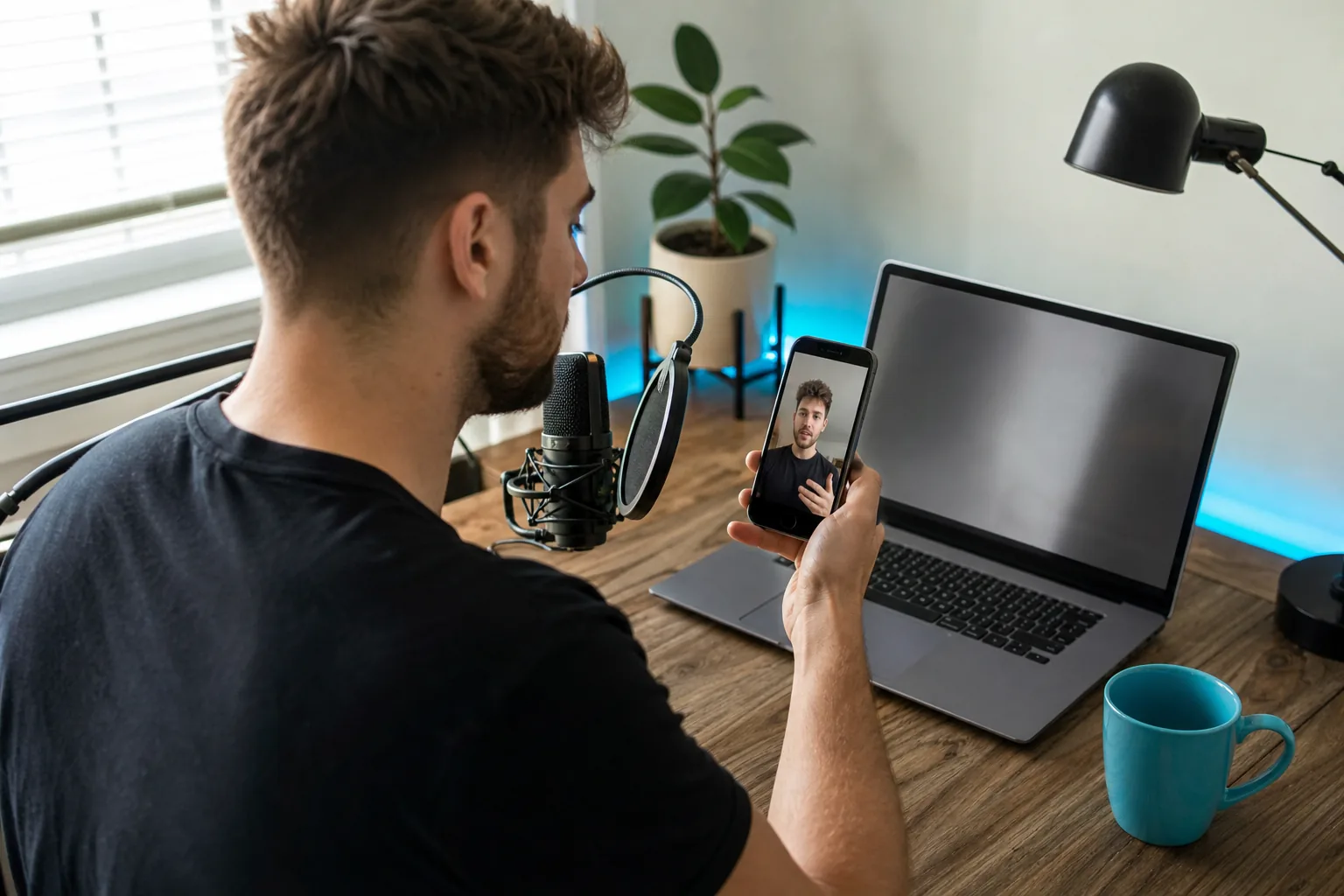
Step 2: Review and Edit Captions While Your Video Is a Draft
A draft is the best time to fix caption mistakes. You can check the words and the timing before viewers see the clip. Make the review part of your normal post check, not a last-minute scan of the first line.
Open your draft from your profile, return to the editing screen, and find the caption text. TikTok’s controls can shift, so look for an edit option near the generated captions. Tap a caption segment to change its text. Play that part of the clip again before you move on.
Use this pass to check the words that automated speech tools often struggle with. Listen closely for guest names, place names, brand terms, and short words that sound alike. For interviews, a speaker’s quick correction or a brief overlap between two voices can also lead to a strange transcript.
- Fix meaning first. Correct a wrong word before adjusting the look of the caption.
- Keep each line easy to scan. Split a long thought at a natural pause rather than leaving a dense block on screen.
- Check the timing. Make sure each line appears as the speaker says it and clears before the next thought.
- Preview the whole clip. A caption can look fine by itself but feel rushed beside the next one.
For a sermon, for example, a caption tool may mishear a person’s name or a word from a Bible passage. For a podcast, it may mistake a guest’s company name for a common word. Don’t rely on context alone. Replay the audio and make the correction where it happens.
Keep the final wording close to what the speaker said. Editing out a repeated filler word may help a short clip read more cleanly, but changing the speaker’s meaning can mislead viewers. When a sentence needs more context, consider whether the clip itself starts too late.
If caption editing sits inside a wider weekly publishing task, decide who owns each check. A creator can approve names and key phrases while an editor checks timing and line breaks. That handoff keeps the speaker’s meaning intact without making every caption review a full edit session.
By now, your draft should have accurate words, sensible breaks, and captions that match the audio. Save it only after the full preview looks right. For creators weighing hands-on editing against outside help, the comparison of a video clipping service and hiring an editor can help clarify who handles each part of the workflow.
Step 3: Add or Change Captions on a TikTok Video After Posting
First, check what you mean by “caption.” A post description is the written text below a video. On-screen subtitles show the spoken words inside the video. Editing one doesn’t always change the other.
Open the posted video and check its available edit options. If TikTok shows a control for editing the video’s captions, open it and correct the text. Review the full clip again after saving. The exact controls may vary, so don’t assume every account has the same options.
If there’s no way to change the subtitle layer, use the clean source video to make a revised version. Add or correct the captions in the editor, then post the corrected video. Before removing the old post, check its comments and performance data if you want to keep a record. Reposting can affect the post’s existing engagement and URL.
There’s another important difference. Captions that are part of the video image are often called burned-in captions. They’re visible as pixels in the video, so changing them means editing and exporting the video again. A separate caption layer may have different controls. Don’t cover one layer with another unless you’ve checked the result for doubled text.
For future posts, save a clean version before adding captions. Keep the original file and the edited export in clearly named folders. If a guest spots an incorrect name after publishing, you can fix the source without rebuilding the clip from scratch.
If you only need to change the post description, use the post’s description-editing control where available. That won’t repair incorrect subtitles inside the video. Check the published clip itself before you consider the issue resolved.
Use this decision rule: edit the existing subtitle layer if TikTok gives you that option. If not, fix the video file and publish a corrected version. Keep the source file either way.
Step 4: Choose Between TikTok’s Caption Tools and Third-Party Apps
Choose the shortest workflow that still gives you the review and control your clip needs. TikTok’s native captions suit a quick post with one language. A separate app can make sense when you want specific caption styles or need to review a file before posting. A done-for-you clipping service takes on more of the weekly work.
| Route | Good fit for | Who prepares the clip? | What to weigh |
|---|---|---|---|
| PenguinClip | Interview-style creators with long-form recordings | Our team selects moments, edits clips, adds captions, and delivers files weekly. | Useful when you want a ready-to-post vertical clip batch rather than captioning each clip yourself. |
| TikTok auto-captions | A quick, single-language post | You record or upload the video, then review and edit the generated text. | Fast to try in the app. You remain responsible for proofreading and the rest of the edit. |
| CapCut | Mobile creators who want a video editor with caption styling | You edit and caption your own video. | It is a free editor with TikTok integration. Check the exported clip before posting. |
| VEED | Quick browser-based captioning work | You prepare the video and review its captions. | Its free version and caption styling, including animated highlights, may suit a short editing task. |
| Kapwing | Teams that want to review captions together online | Your team prepares and reviews the project. | It has multiple caption styles and can export SRT files separately. |
App features and account options can change, so test one short clip before moving a whole series into a new workflow. Pay attention to whether you can export the final video in the vertical format you need. Also check where the captions sit in the preview.
For a podcaster or webinar host with a new recording every week, captioning is only one task. Someone still has to find a strong moment, cut it into a clip, check the text, and prepare a file for posting. PenguinClip handles those steps for customers who want weekly edited, captioned vertical clips delivered to cloud storage. Read more about PenguinClip’s weekly clipping and captioning workflow if you want to see how that service is set up.
There’s no need to switch tools just because another app has more caption effects. Keep TikTok’s native option for simple posts. Try an outside editor when you have a clear need, such as team review or a separate subtitle file. For a steady publishing schedule, compare the time spent on every clip with the time spent reviewing a prepared batch.
Step 5: Make Captions Readable, On-Brand, and Useful for Discovery
Captions work best when viewers can read them without losing the action. Keep the text clear and place it where it won’t cover a face, a product, or a key detail. TikTok buttons and other screen controls can sit over the video, so preview captions in the same full-screen view viewers will see.
Use a type size that stays legible on a phone. Keep the style consistent across your clips, but don’t let a brand color make the words hard to read. A strong contrast between text and the video behind it matters more than a fancy effect. If the background changes from light to dark, test the caption treatment across the whole clip.
Long captions can be hard to scan. Break a spoken thought at a natural pause, then check that each line stays on screen long enough to read. Avoid placing every word in a new position. A steady caption location helps viewers follow the dialogue while they watch the speaker.
Captions support viewers who can’t hear the audio or who prefer to watch with sound off. Captions for prerecorded content provide text for speech and other relevant audio information. In a short social clip, that means checking for useful sound cues too, when they affect the meaning.
Captions can also help make spoken terms visible, but they don’t guarantee that TikTok will show a video for a particular search. Write the post description with the topic in plain language. Say the subject clearly in the video when it fits. Treat keywords as a way to make the subject easier to understand, not as a promise of more views.
For multilingual audiences, don’t assume an automatic transcript has also been translated. If you add translated captions, have a fluent speaker review names and meaning. Check line length and timing in the translated version as well. A sentence that fits in English may need more screen time in another language.
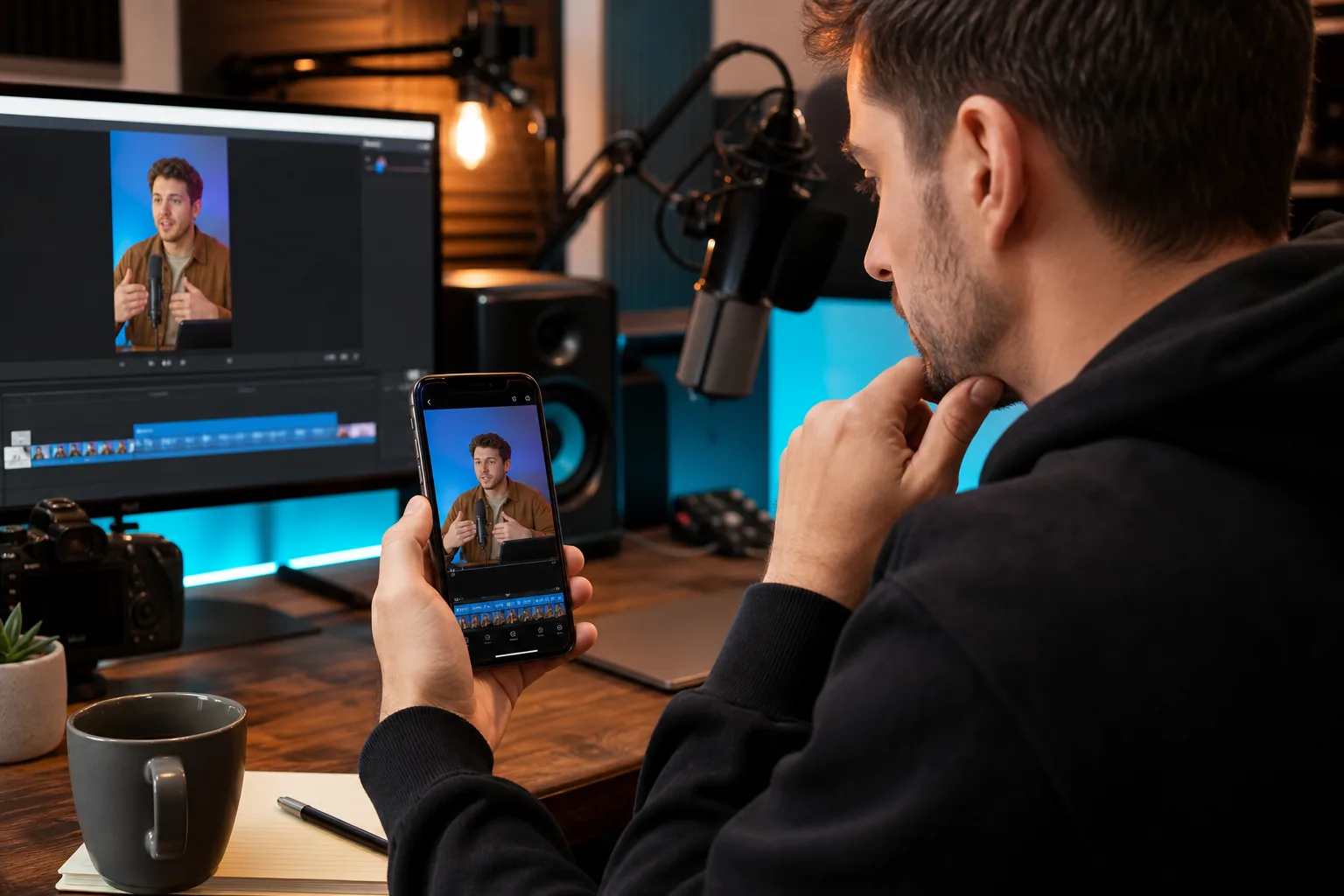
Step 6: Fix Common Auto-Caption Errors and Measure Results
When captions look wrong, find out whether the problem is the text, timing, placement, or number of caption layers. Fix one issue at a time, then preview the full clip again.
- Wrong words: Replay the line and correct names, slang, or industry terms by hand.
- Late or early text: Adjust the caption timing if the editor allows it. Check the start of each line against the audio.
- Hard-to-read layout: Shorten the text or move it away from faces and app controls.
- Two sets of subtitles: Check whether the source video already has burned-in captions. Keep one visible layer rather than stacking both.
- Missing caption controls: Update the app, restart the editing flow, and try a short test post. Labels and options may differ by account or app version.
Protect the original file before trying a fix that could affect the whole video. If the app fails to save an edit, reopen the source and retry. A short test export can help you check the result without redoing a long recording.
To see whether captions are helping your audience, compare similar clips rather than judging one post in isolation. Look at watch time or completion data if those metrics are available in your account. Note whether viewers stay through a key spoken point. Keep the clip topic and length in mind, since those can affect results too.
Don’t call a small change a proven lift. Compare a few posts that serve a similar purpose, with captions on one and without them on another when that fits your workflow. The result can guide your next test, but it doesn’t prove captions caused every difference in views or watch time.
A transcript accuracy claim is less useful than a final check of the words viewers will see. If you need a reusable subtitle file or a translated version, a reviewed file workflow can give you another chance to correct the text before it becomes part of the video. For a short, single-language post, native auto-captions may be all you need.
Captions are one layer of accessibility. The basic distinction between closed captions and open captions is useful when choosing between text viewers can control and text embedded in the image. In either case, check that your final clip has one clear, synchronized caption track.
By now, you should have a repeatable quality check: confirm the words, review the timing, check placement, and compare results across similar posts. Make corrections before publishing the next batch.
Frequently Asked Questions
How accurate are TikTok auto-captions?
TikTok auto-captions can give you a useful first transcript, but you should check them before posting. Names, accents, fast speech, overlapping voices, and specialized terms can lead to errors. Play the clip while reading each caption. Correct any word that changes the speaker’s meaning, then watch once more to check timing.
Can I edit TikTok captions after posting?
You may be able to edit a caption layer after posting if the option appears in your account’s video-editing controls. If it doesn’t, edit the original video and publish a corrected version. A post description is separate from subtitles inside the video, so changing one won’t necessarily fix the other.
Can viewers turn TikTok captions off?
Viewers may be able to show or hide supported native captions when TikTok provides that control. Text burned into the video is part of the image, so viewers can’t switch it off. If you’re using an outside editor, check whether you’re exporting a separate caption layer or embedding the text in the video.
Do captions help TikTok SEO?
Captions can make spoken words visible, which helps viewers follow what a clip is about. They don’t guarantee higher search placement or reach. Use clear language in the video and post description, then review the performance of similar clips over time. Treat captions as useful text for viewers, not an algorithm shortcut.
Should I use TikTok’s captions or a separate app?
Use TikTok’s built-in captions for a quick, single-language post that you can proofread in the app. Consider a separate editor when you need specific styling, team review, or a subtitle file. If you publish clips from long recordings every week, a done-for-you service can take captioning and clip prep off your task list.
Conclusion
For one-off posts, start with TikTok’s auto-captions and proofread the full clip before publishing. For a steady stream of podcast, sermon, or webinar clips, explore what a video clipping service handles and decide whether weekly editing support fits your workflow.